> For the complete documentation index, see [llms.txt](https://help.iodd.kr/llms.txt). Markdown versions of documentation pages are available by appending `.md` to page URLs; this page is available as [Markdown](https://help.iodd.kr/aes256-encryption-mini-pro-st-lk/admin/2nd-password.md).
# 2nd Password
Advanced security feature providing definitive protection against Brute-Force attacks.
The **2nd Password** is a critical security layer required when initializing encryption on a drive or when migrating an encrypted drive to a different IODD ST/LK or MINI PRO device.
This password can be up to 38 digits long and is strictly managed by the **administrator**.
{% hint style="danger" %}
**Irrecoverable Password** If the 2nd password is lost, it cannot be retrieved, reset, or recovered through any means. Ensure this password is stored in a secure location.
{% endhint %}
***
### Why the 2nd Password is Essential
{% hint style="info" %}
**Enhanced Security Benefits**
* **Anti Brute-Force**: Prevents unauthorized access via mass-cloning or brute-force attacks by adding a secondary hardware-level validation.
* **Hardware Portability**: If your IODD enclosure is physically damaged, the 2nd password allows you to safely migrate your encrypted drive to a new IODD ST/LK or MINI PRO device.
{% endhint %}
***
### Key Usage Guidelines
{% hint style="warning" %}
**Storage of the 2nd Password** The 2nd password is encrypted and stored within the **ST400/LK100/MINI PRO hardware**. You typically only need to set it once during the initial encryption setup unless you choose to change it later.
{% endhint %}
{% hint style="warning" %}
**Drive Migration Requirement** When connecting an encrypted drive to a new IODD device, you must provide the existing 2nd password to gain access. Without it, the drive remains inaccessible. Refer to: [Encrypted Disk Migration Guide](/encrypted-disk-change-mini-pro-st-lk.md)
{% endhint %}
***
### Setting the 2nd Password
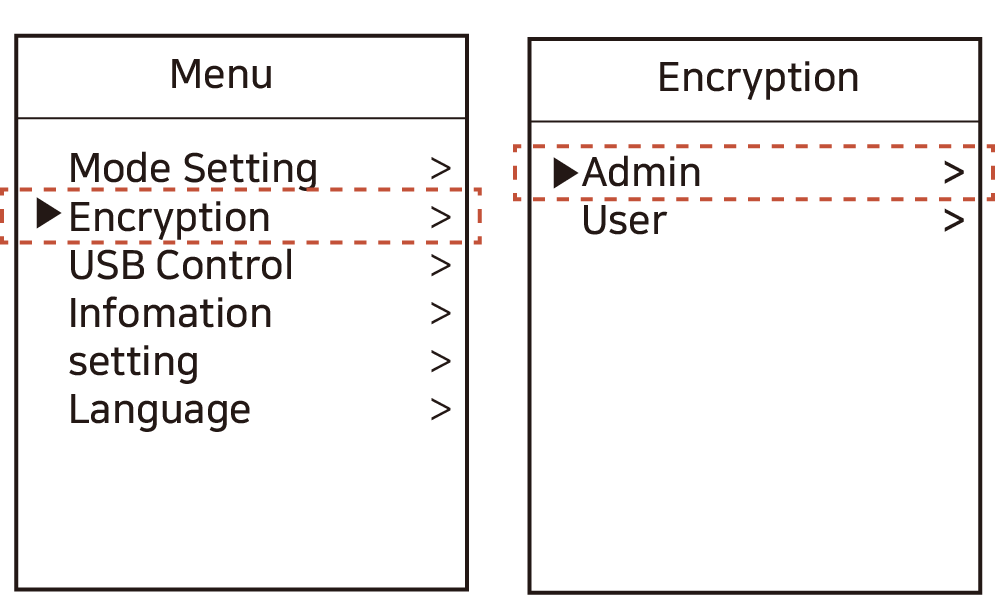
1. Press the **Menu button** and navigate to: **\[Encryption] - \[Admin]**.
Access the Administrative encryption settings.
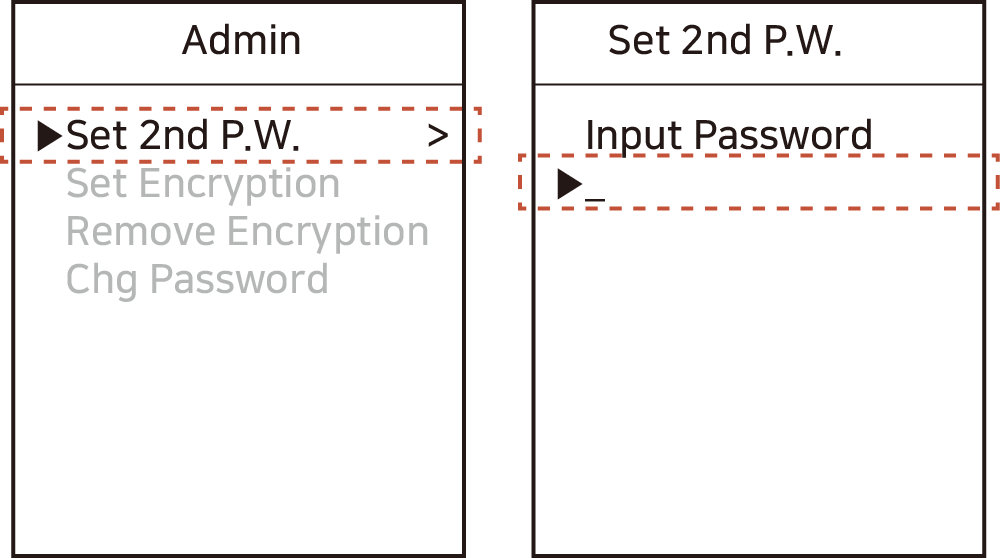
2. Select the **\[Set 2nd P.W]** option.
Input your desired 2nd password twice to confirm and set.
3. Once the 2nd password is successfully configured, proceed to set the **Admin Password**. Refer to: [Setting the Admin Password](/aes256-encryption-mini-pro-st-lk/admin/set-admin-password.md)
{% hint style="warning" %}
**Encryption Activation** Hardware encryption functionality cannot be activated or utilized without first configuring a 2nd password.
{% endhint %}