Set admin Password

Administrative control menu for managing multi-user passwords and disk permissions.

When multiple users share an IODD ST/LK device, the Administrator Mode allows for the management of individual user passwords and specific drive permissions. Administrators have the authority to reset user passwords and are the only ones capable of removing encryption from the entire device.

Prerequisites

[!IMPORTANT] 2nd Password Requirement You must configure the 2nd Password before you can set the Admin Password. Refer to: 2nd Password Setup Guide


Step-by-Step Setup

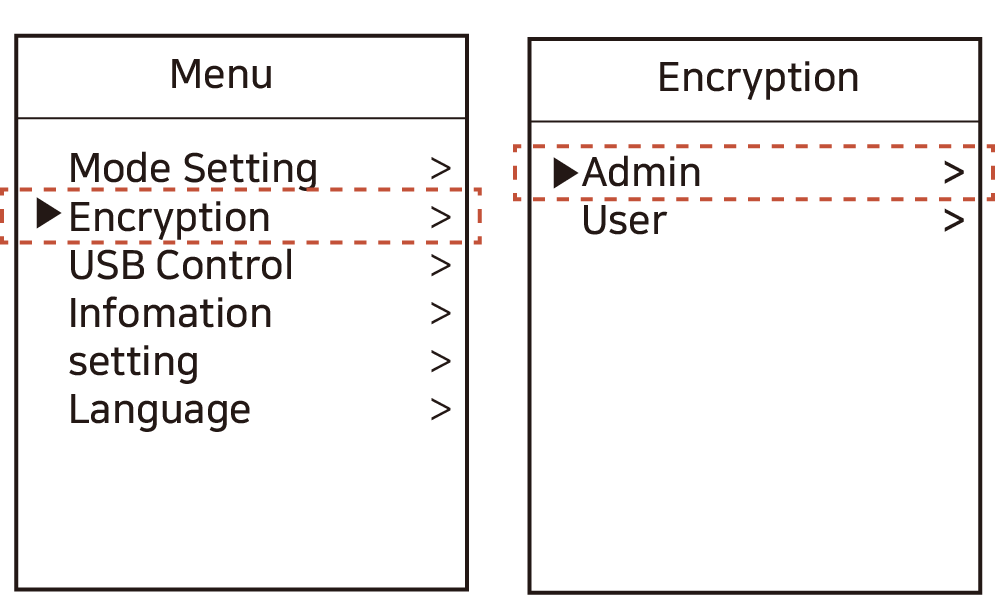
  1. Press the Menu button and navigate to: [Encryption] - [Admin].

    Encryption Admin Menu
    Accessing the Administrative encryption settings.
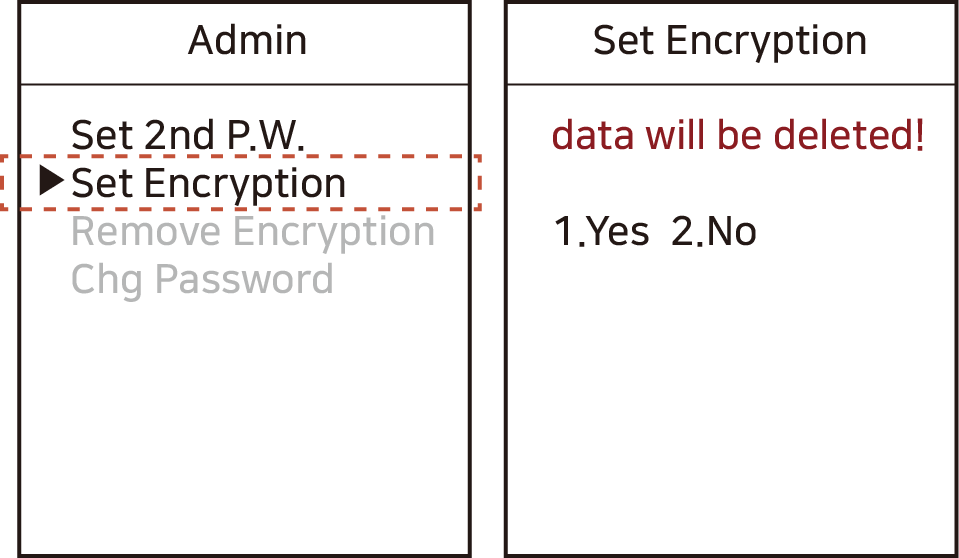
  2. Select the [Set Encryption] option and review the caution message.

    [!CAUTION] Data Loss Warning Enabling or deleting the Admin password will initialize (erase) all data on the disk. Ensure all important files are backed up before proceeding.

    Encryption Caution Message
    Read the warning carefully before initiating encryption.
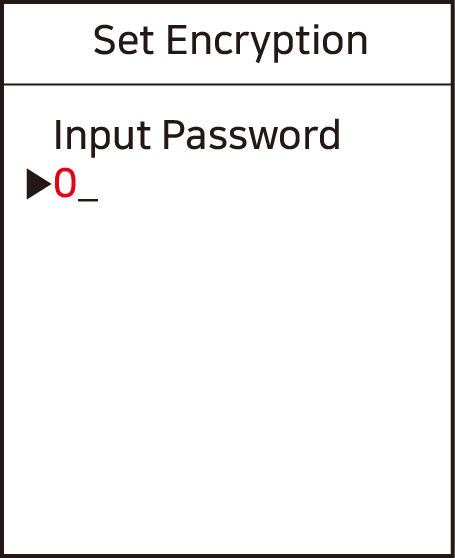
  3. Enter your desired Admin Password twice for confirmation.

    Admin Password Entry
    Input the administrator password using the keypad.
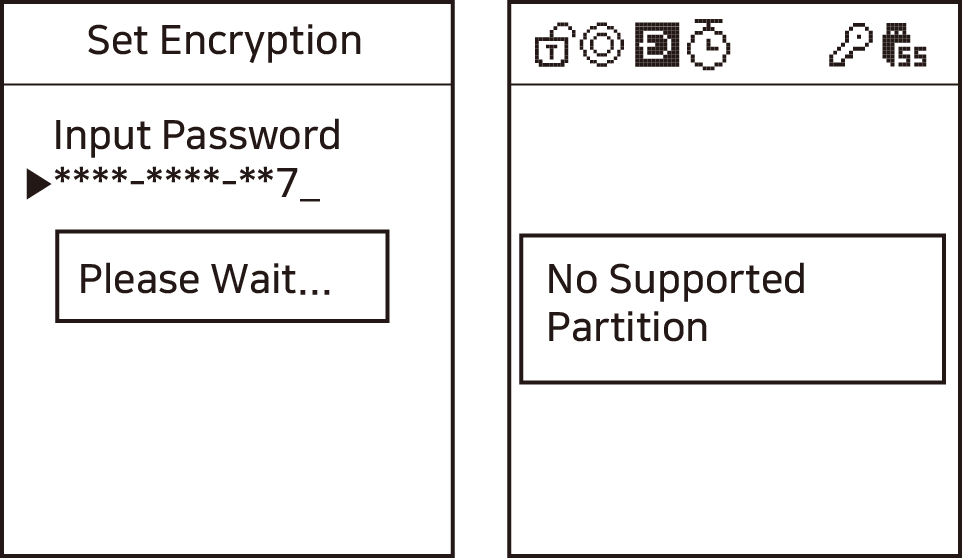
  4. Wait for the process to complete. Once finished, the disk is initialized, and the screen may display [No appropriate partition] because the drive is now unformatted.

    No Partition Message
    Disk initialization successful; formatting is required for use.
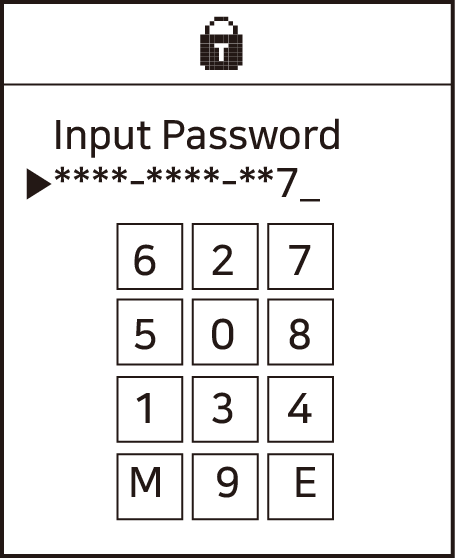
  5. Reconnect the IODD. You will now be prompted for the password. To log in as the administrator, you must enter the prefix "0" followed by your password.

    Admin Login Screen
    Log in using the 0 + [Admin Password] format.

Understanding the Password Structure

The IODD login system uses a prefix to distinguish between the administrator and general users.

[!NOTE] Login Format: [User ID] + [Set Password]

  • 0: Administrator Identification Digit

  • 1–4: User Identification Digits

Example: If you set the administrator password to 55447788, the final login code is 055447788.

[!WARNING] Authentication Errors If you receive a "Wrong Password" error despite entering the correct numbers, check if you omitted the "0" prefix. The system does not add the administrator ID automatically during the login prompt.


Next Steps

After setting the password, you may need to format the drive or set up virtual drives.

Last updated