> For the complete documentation index, see [llms.txt](https://help.iodd.kr/llms.txt). Markdown versions of documentation pages are available by appending `.md` to page URLs; this page is available as [Markdown](https://help.iodd.kr/various-functions/s.m.a.r.t-information.md).
# S.M.A.R.T / Information
Comprehensive guide for monitoring internal disk health and IODD device status.
Maintaining the health of your internal drive and staying updated with the latest firmware is crucial for data integrity. The IODD provides built-in tools to monitor these statuses directly on its display.
### S.M.A.R.T. Disk Information
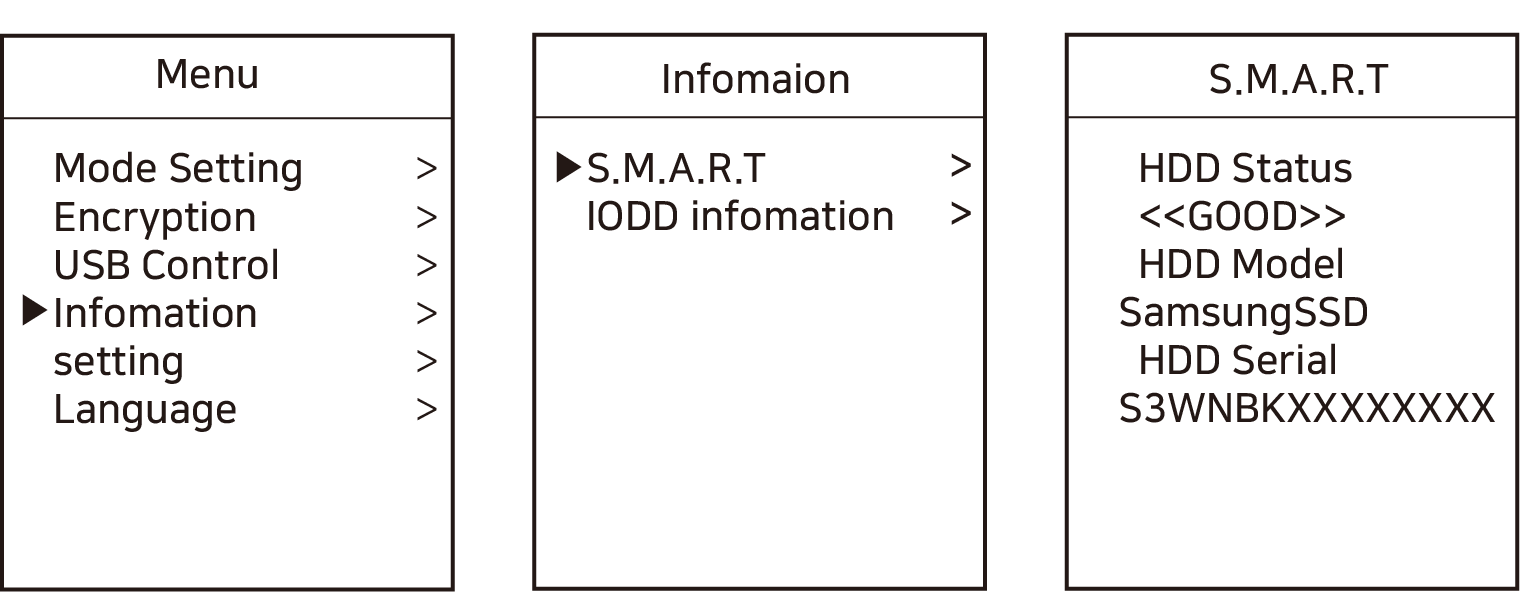
S.M.A.R.T (Self-Monitoring, Analysis, and Reporting Technology) allows you to check the diagnostic health of your internal HDD or SSD.
1. Press the **\[Menu]** button and navigate to: **\[Information] - \[S.M.A.R.T]**.
Accessing the disk diagnostic tool.
{% hint style="info" %}
**Understanding Health Status**
* **HDD Health**:
* `<< Good >>`: The drive is healthy and operating normally.
* `<< Warning >>`: Potential issues detected. Back up your data and consider replacement.
* `<< Bad >>`: Critical failure imminent. Replace the drive immediately.
* **HDD Model**: Displays the manufacturer's model name.
* **HDD Serial**: Displays the unique serial number of the drive.
{% endhint %}
{% hint style="danger" %}
**Power Stability Warning** If the **USB voltage is insufficient or unstable**, S.M.A.R.T. information may be displayed incorrectly or fail to load. Always ensure a stable connection. For more details, refer to: [Voltage Check](/disk-initialization.md#voltage-check)
{% endhint %}
***
### IODD Information
You can check the specific details of your IODD hardware, including the current firmware version and hardware revision.
1. Press the **\[Menu]** button and navigate to: **\[Information] - \[Product Info]**.
Checking the device hardware and firmware version.
{% hint style="info" %}
**Key Device Status Indicators**
* **Firmware Ver**: Current IODD firmware version.
* **USB Speed**: Currently connected speed (Full/Hi/Super Speed).
* **USB Lowest Volt**: The absolute lowest voltage detected since the device was connected. This is the most important indicator of power stability.
* **Current Voltage**: The real-time BUS voltage currently being supplied.
{% endhint %}
***
### Advanced Hardware Check (Linux/macOS)
If you need a more detailed diagnostic log while the IODD is connected to a computer, you can use terminal commands:
```bash
# On macOS, check disk utility list for basic health info
$ diskutil list
# On Linux, use smartctl for detailed reports (requires smartmontools)
$ sudo smartctl -a /dev/sdX
```